See what every job really costs, while the crew works it
Your crew logs hours to a job and a task from their phone, you approve them, and the job shows what it has cost so far: labour at the true rate, materials, hours against each task’s budget, and your margin. These are real screens from a sample business.
Job costing is part of your free trial, with no card. Your crew uses Work Suite for free.
- Step 1 of 7
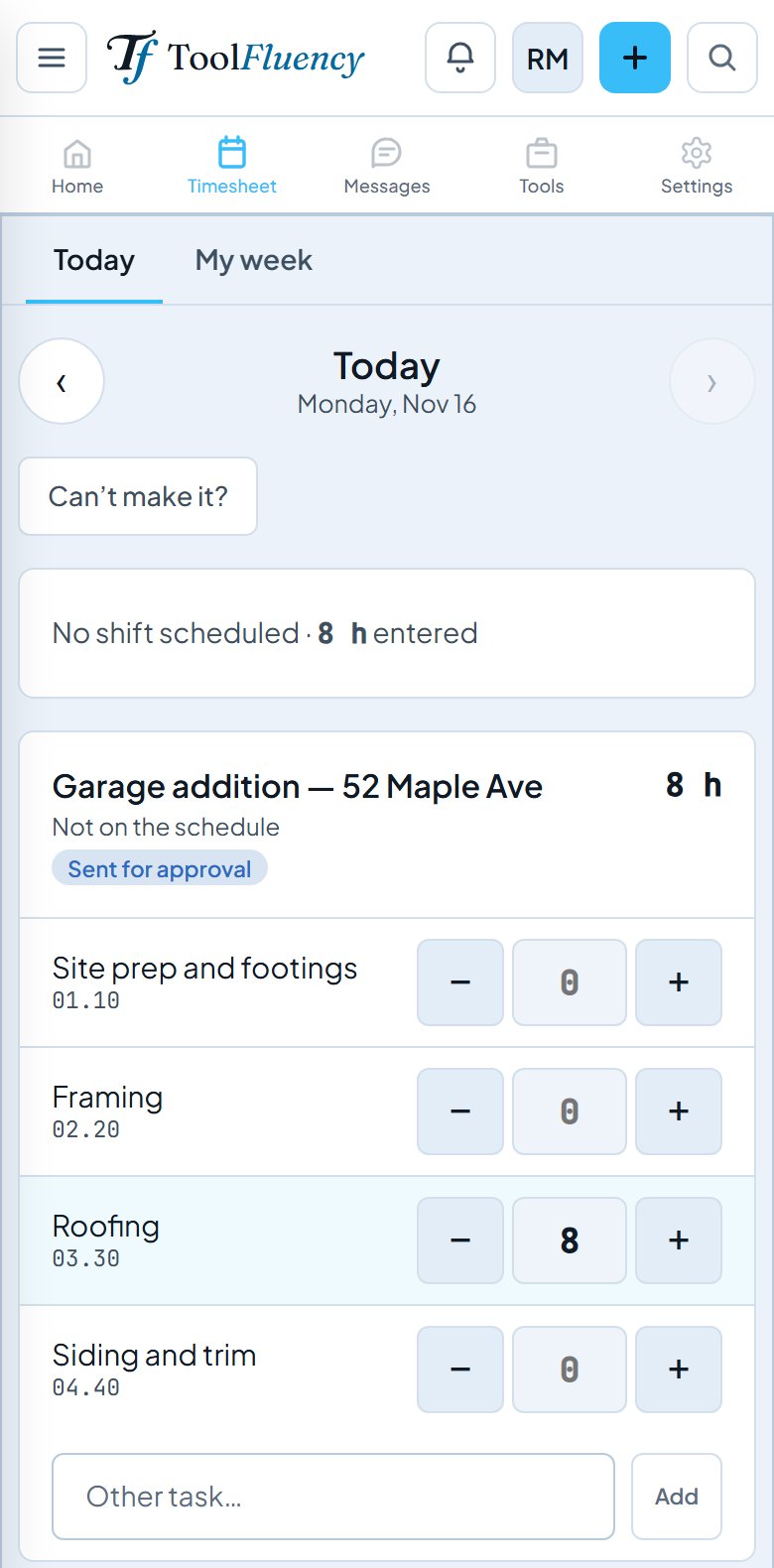
The crew logs hours to the job and the task
Each person picks the job and puts their hours on the task they worked, from the phone browser. The cost code rides along, so nobody types one in the field.
- Step 2 of 7
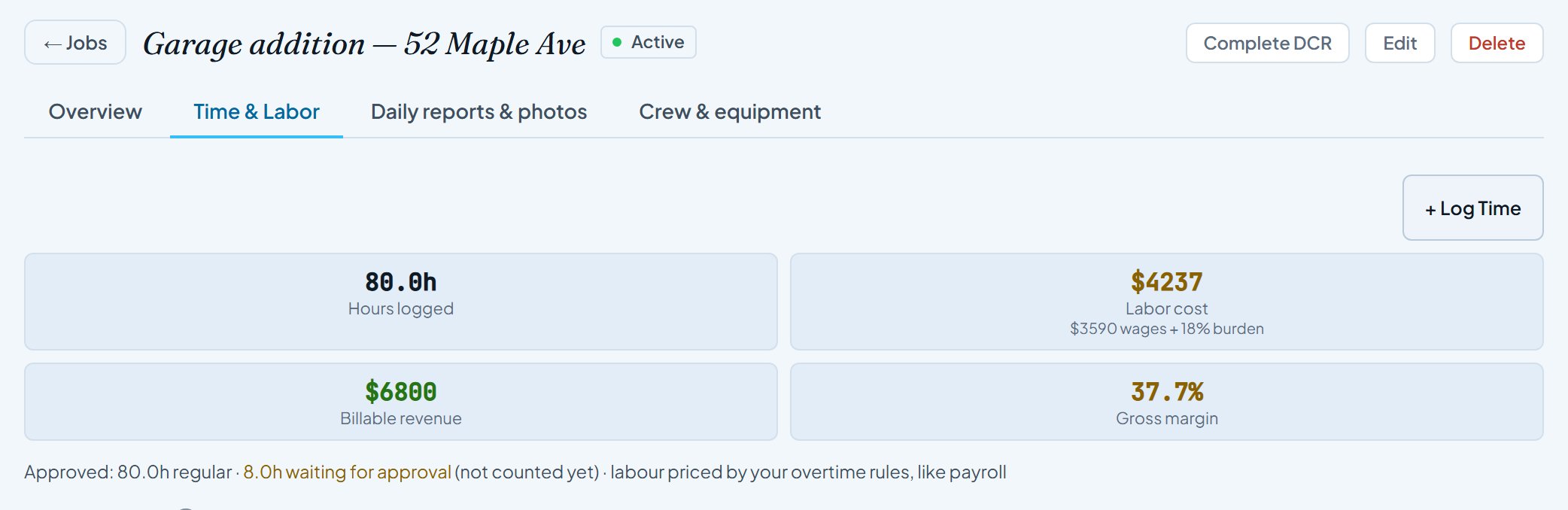
The job shows what it has cost so far
Time & Labor adds up approved hours, labour cost, billable revenue and gross margin. Hours still waiting for your approval are shown but not counted, and overtime is priced by your overtime rules, the same way payroll pays it.
- Step 3 of 7
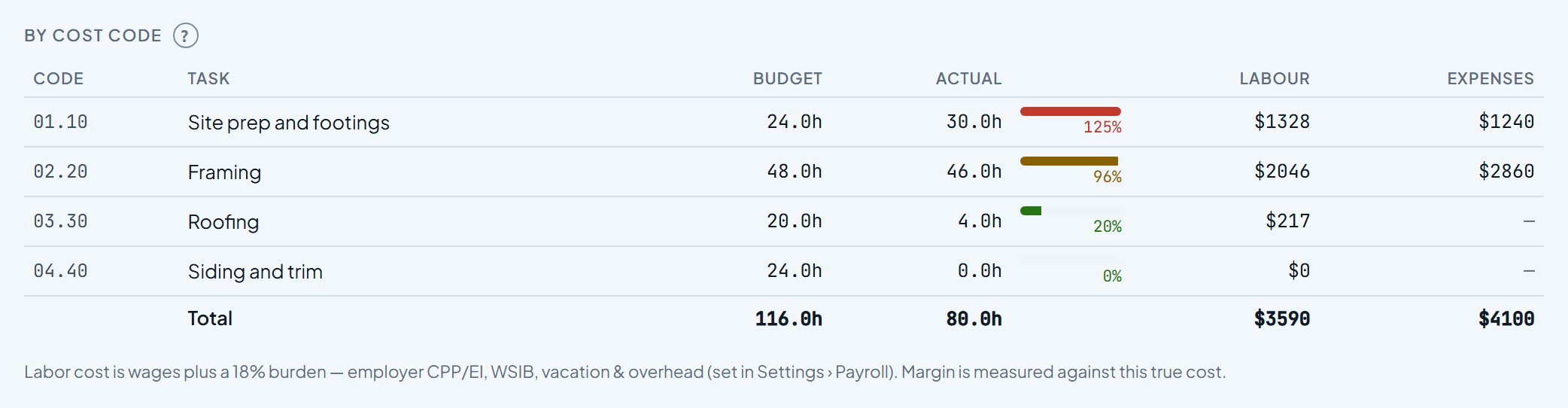
Budget vs actual, task by task
Give each task a budget in hours and the job shows how far through it you are. Footings at 125% shows up while you can still do something about it. Receipts tagged to a task land in the Expenses column at their real cost: HST you claim back is left out.
- Step 4 of 7
Each person’s share of the job
Open anyone to see their days, pay rate and charge-out rate, what their hours cost you and what they bill, and the tasks they put time on, totalled per task.

- Step 5 of 7
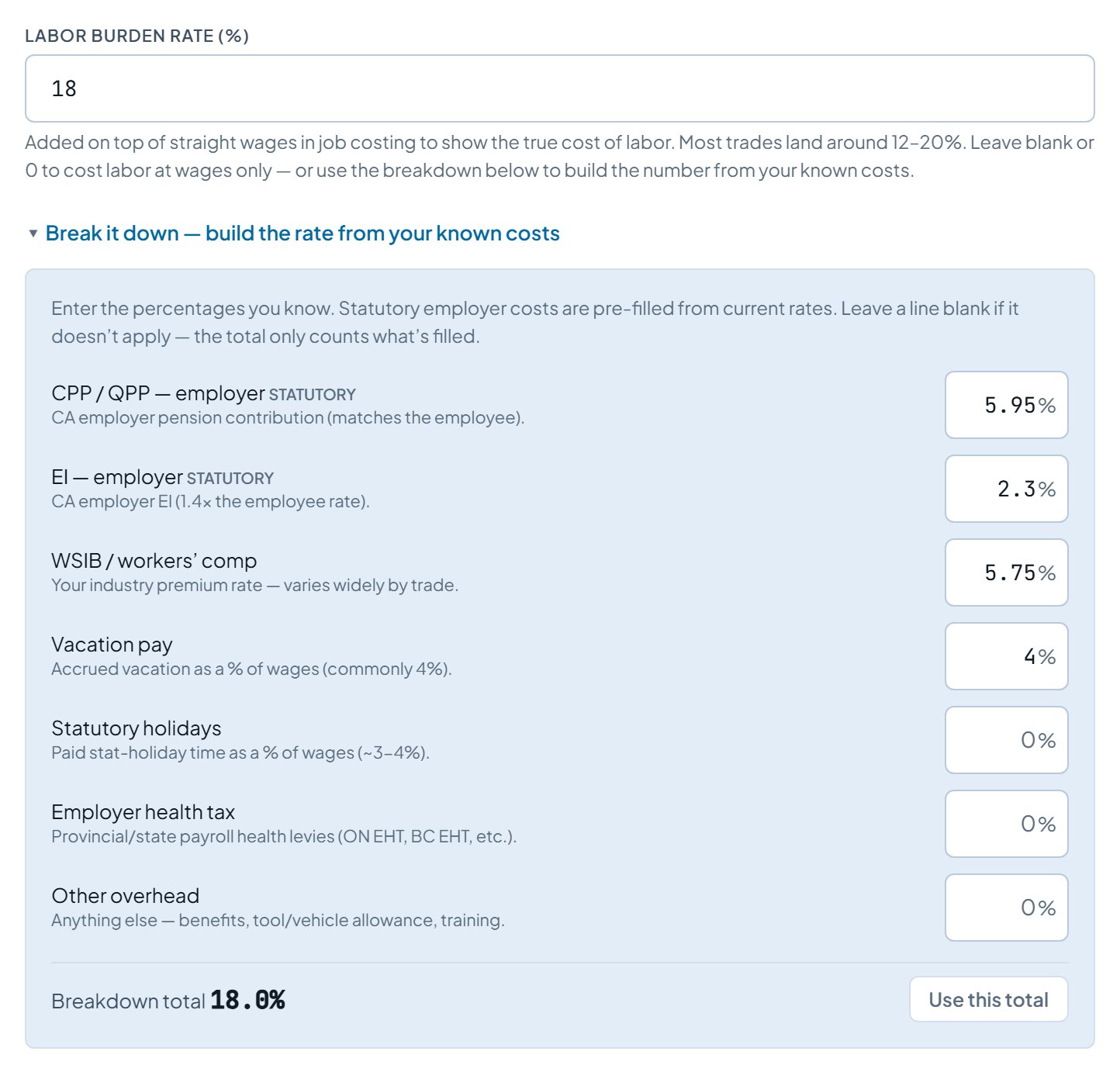
Set your labour burden once
Wages are not the whole cost of an hour. Settings, Payroll, Labor Burden Rate adds it on top, and the job’s margin is measured against that true cost. Break it down builds the number from what you actually pay: employer CPP and EI (or Social Security and Medicare in the US) are filled in for you, and you add workers’ comp, vacation pay and anything else.
- Step 6 of 7
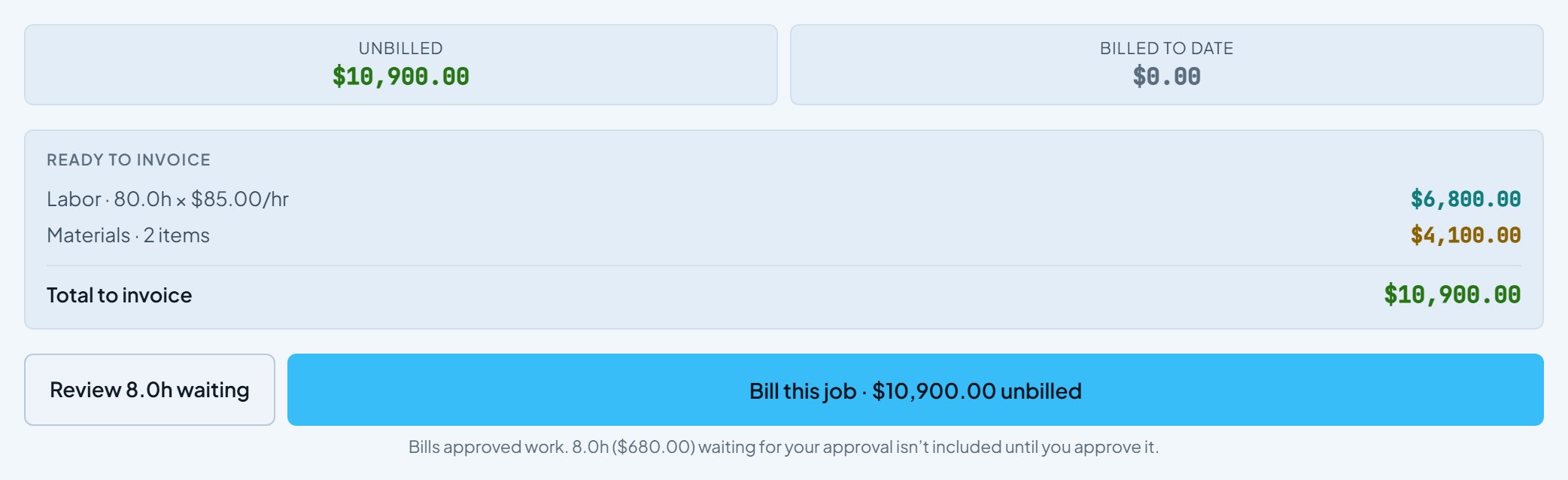
Bill the approved work, with waiting hours right beside it
Overview shows everything approved and not yet invoiced: labour and billable materials. Hours your crew sent that you haven’t approved are not in the total; they wait on the button beside Bill.
- Step 7 of 7
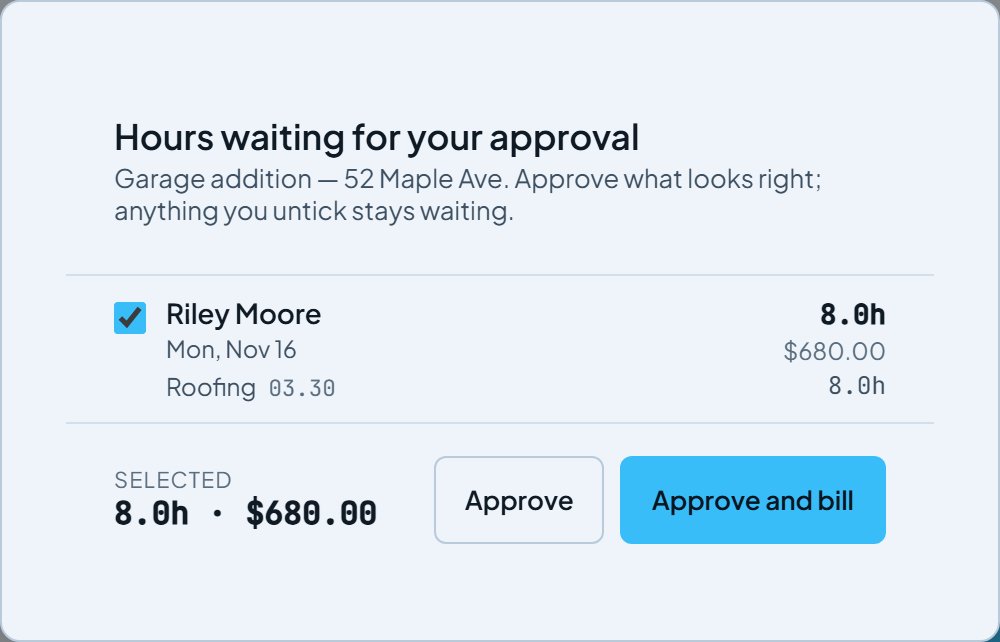
Review the waiting hours, then approve and bill
One look at who worked, which day, which task and what it bills. Approve and bill adds them to the invoice in the same step; anything you untick stays waiting. Each person gets an Hours approved notice. The invoicing guide shows the rest.
Know your margin before the job is done. Sign up free, add a job with its tasks, and invite your crew. Job costing is part of your free trial, with no card. Your crew uses Work Suite for free.
Start freeScreens updated 2026-11-16 from the live app. Names and amounts are a sample business.